Quick Resume, Revisited
Gears of War: E-Day to GTA VI in 7.53 seconds on XBOX Series S.
When we launched XBOX Series X|S, Quick Resume was one of my favorite features. It runs on the XBOX Velocity Architecture in XBOX Series X|S, and I am reminded of it every time I play, especially these past few days with GTA VI.
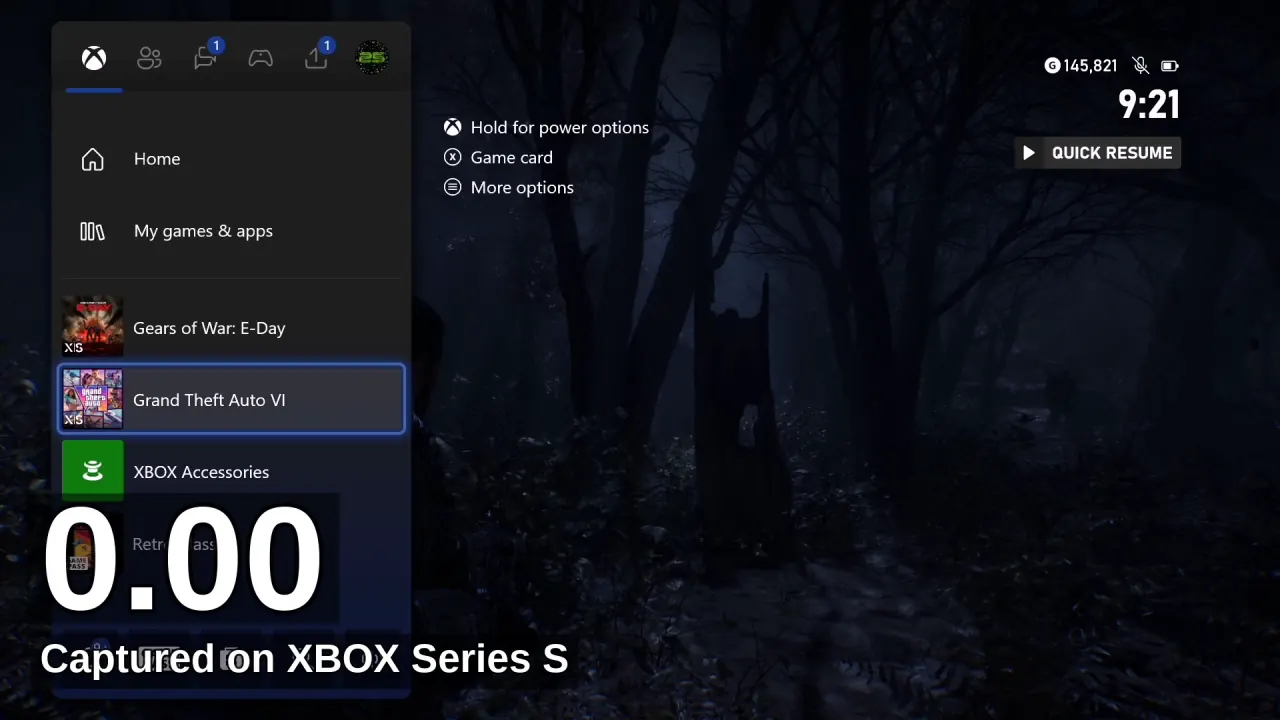
Above is Gears of War: E-Day running on my XBOX Series S. I open the Guide, select Grand Theft Auto VI, and 7.53 seconds later I’m back in GTA VI, exactly where I left it.
Gears doesn’t completely close when I leave it. It stays suspended on the console, ready for me to swap back the same way. Shut the console down, unplug it, come back the next day, next week or next month, and both games are still sitting there.
I’m not the only one who has tested that. After I shared the clip, one person told me they were in the middle of a game, powered off, unplugged their XBOX, moved 10 hours away, had dinner, and then powered it back up. In their words: “quick resume picked up like nothing happened.”
The TikTok version
Same attention span. Better information. I won’t ask you to follow for more.
- Quick Resume is on by default on XBOX Series X|S. There’s nothing to set up.
- It holds several games at once.
- Pin a game so it never drops out.
- To see what’s suspended: XBOX button, My games & apps, See all, Groups, Quick Resume.
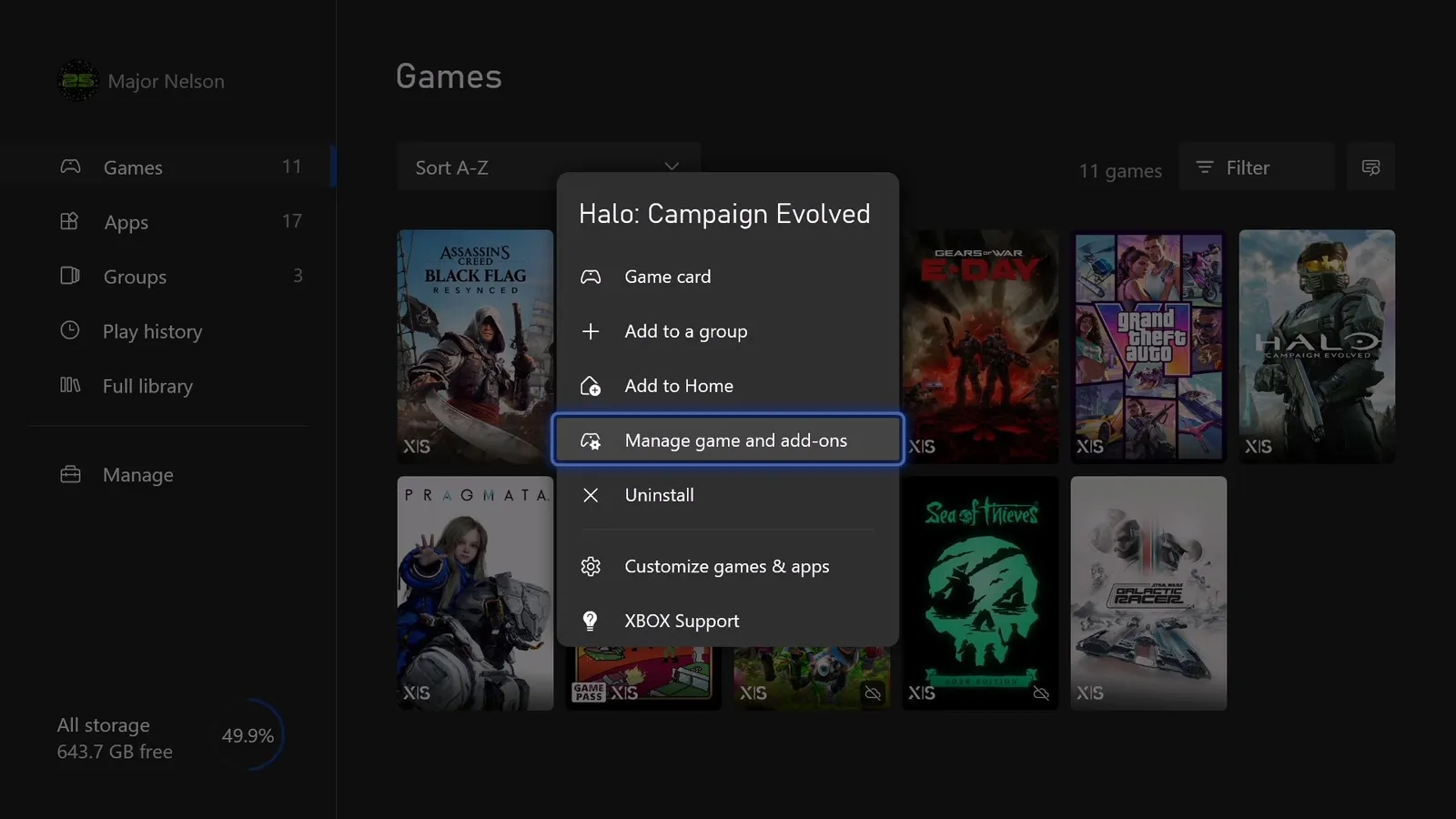
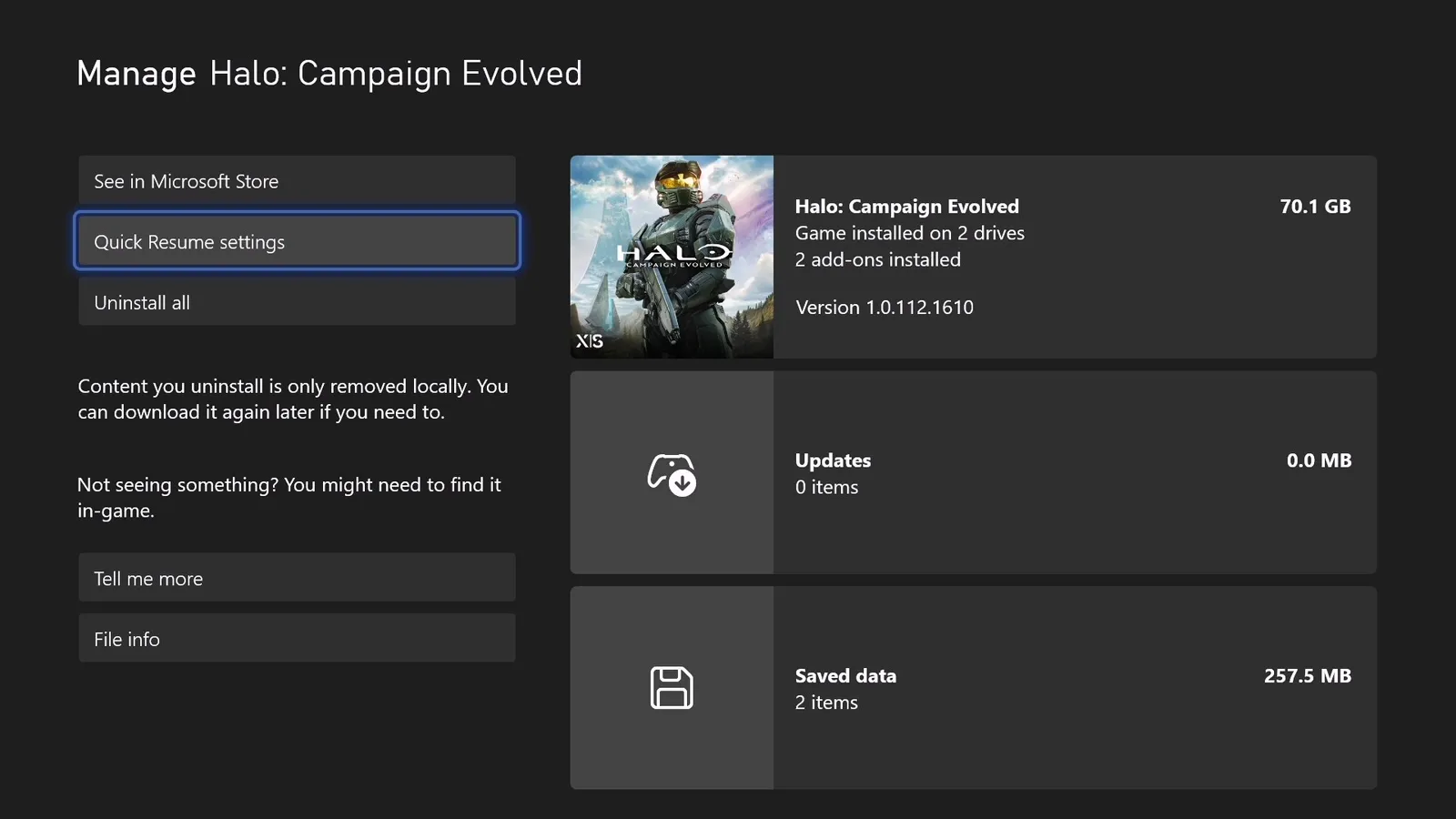
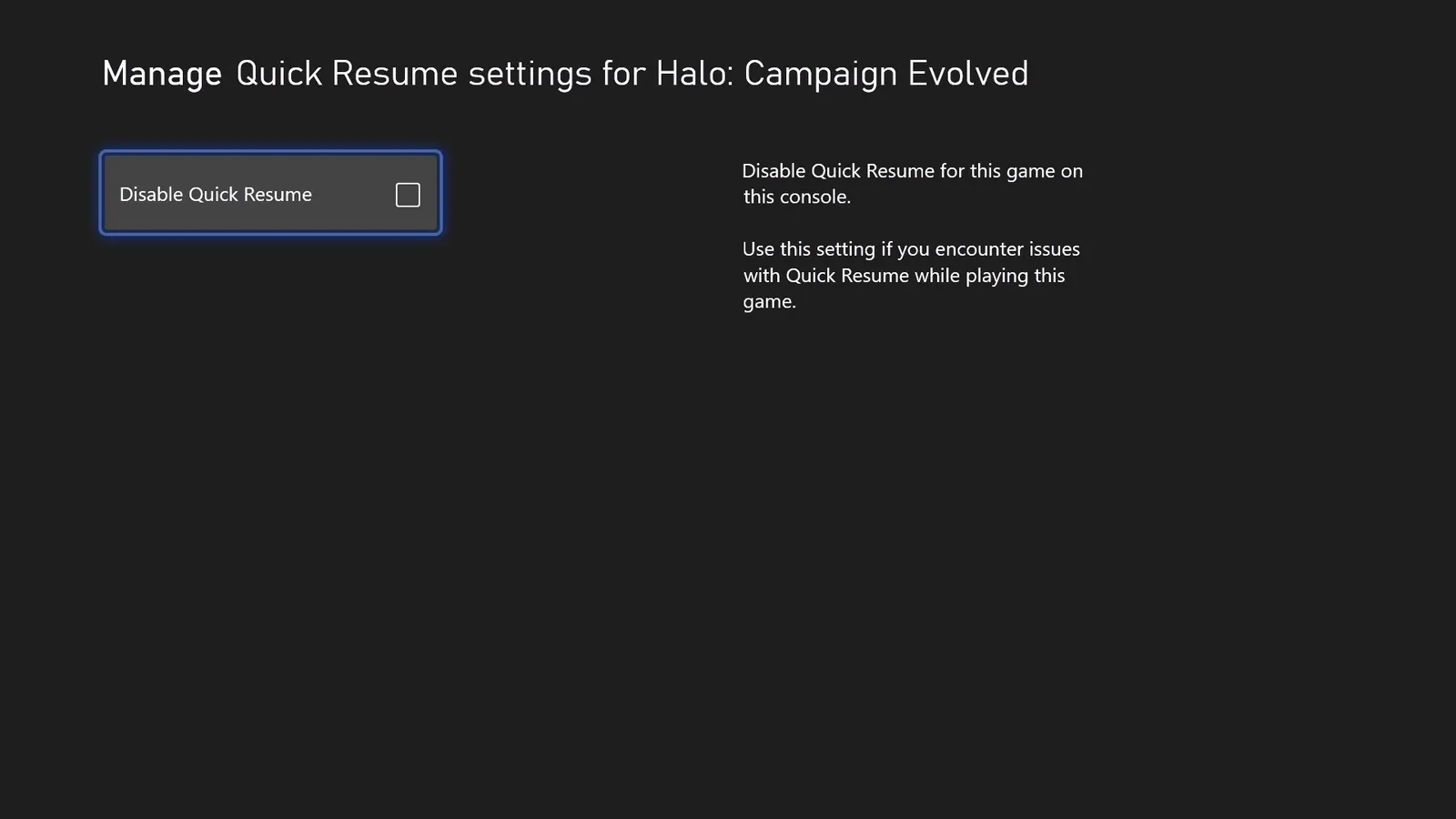
- A multiplayer game acting up? Turn Quick Resume off for just that game: Menu, Manage game and add-ons, Quick Resume settings.
- Games optimized for XBOX Series X|S play from the internal SSD or a Storage Expansion Card, not a USB drive.
How it works
Quick Resume saves the full state of a suspended game and restores it when you come back. There’s nothing to turn on. It’s there by default on XBOX Series X and Series S, and it just works. As Jason Ronald, then Director of Program Management at XBOX (now VP, Next Generation), explained on XBOX Wire: “Quick Resume is powered by the Xbox Velocity Architecture and game state data is persisted on the internal SSD.”
It holds several games at once, so you can hop between them and land right where you left off. Pin a game and it stays put, no matter what else you play.
To see what’s suspended right now, press the XBOX button, go to My games & apps, select See all, then Groups, and open the Quick Resume group.
Built on the XBOX Velocity Architecture
That custom SSD is part of the XBOX Velocity Architecture, and it is the reason XBOX Series X|S needs special storage. It was built for “consistent, sustained performance as opposed to peak performance.” Regular PC SSDs, the team noted, “often reduce performance as thermals increase.”
So games optimized for XBOX Series X|S have to be installed on the console’s internal SSD or a Storage Expansion Card, made by Seagate and Western Digital. Both are designed to match the performance of the internal SSD. A standard USB 3.1 drive can hold those games for quick transfers, and it can play XBOX One, XBOX 360 and original XBOX games, but it can’t play games optimized for XBOX Series X|S.
Multiplayer games
Due to the nature of some multiplayer games requiring a connection to a server, Quick Resume may not work very well. It’s not a system fault. It’s just the nature of multiplayer architecture. Fortunately, XBOX gives you a way to manage Quick Resume for multiplayer titles.
Turn it off for one game
A feature that I helped champion after launch before I left XBOX was the option to have per-game settings for Quick Resume. That way you can disable it for multiplayer games, so each time you open one it starts fresh and reconnects to the matchmaking server. A clean start, if you will.
To change the setting:
- Highlight the game anywhere on your console (Home, My games & apps, Pins) and press the Menu button.
- Select Manage game and add-ons.
- Select Quick Resume settings.
- Check Disable Quick Resume.
The setting is per game and per console. To turn Quick Resume back on, follow the same steps and uncheck the box.
Some of my favorite days at XBOX were spent with the engineers who designed and built features like this. I’d learn how something worked, sometimes right down to the code. I would even suggest features to the teams based on what I was hearing or reading in the community. After we built it, I would then figure out how to explain it to all of you and get ahead of your questions. Per-game Quick Resume settings are a good example. Players asked for them, and the teams built them.
Like you, I’m a gamer (and a nerd), and I still want to know how things work under the hood.
I really appreciate Quick Resume, and I miss it every time I play on a device that doesn’t have it.
Let me know your Quick Resume story in the comments below!
Read more
- Get back to your game instantly with Quick Resume (XBOX Support)
- Use the Storage Expansion Card for XBOX Series X|S (XBOX Support)
- A Primer on the Simple and Custom Storage Options Available for Xbox Series X and Xbox Series S at Launch (XBOX Wire), Jason Ronald on storage and Quick Resume
- Xbox Velocity Architecture: A Closer Look at the Next-Gen Tech Driving Gaming Innovation Forward on Xbox Series X (XBOX Wire)
- May Xbox Update Includes Quick Resume Improvements (XBOX Wire), the update that added the Quick Resume group and tag
- March Xbox Update: Pin to Quick Resume, Controller and Audio updates, and More (XBOX Wire)